Beaver’s Shrimp Farming Diary · Issue 1
About 4300 words, 14 min read
Before Raising Shrimp, Dig the Pond First
Before raising shrimp, dig the pond. Before running OpenClaw, set up .openclaw.
If you haven’t heard of OpenClaw yet, here’s the short version: it’s an AI Agent multi-agent collaboration framework. You can raise a whole team of AI Agents inside it — some write code, some write articles, some publish to social media, some monitor your data — each with its own role, working together.
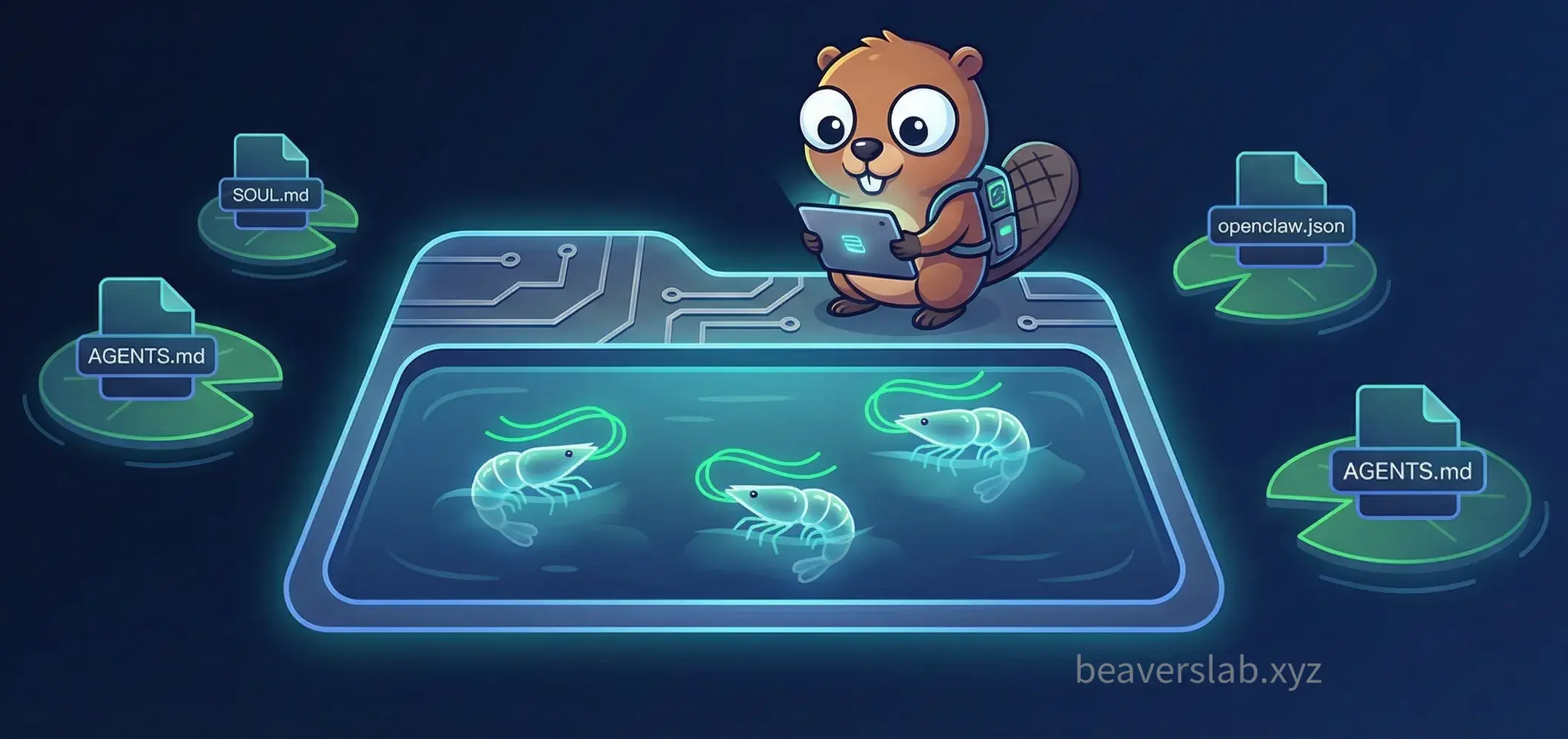
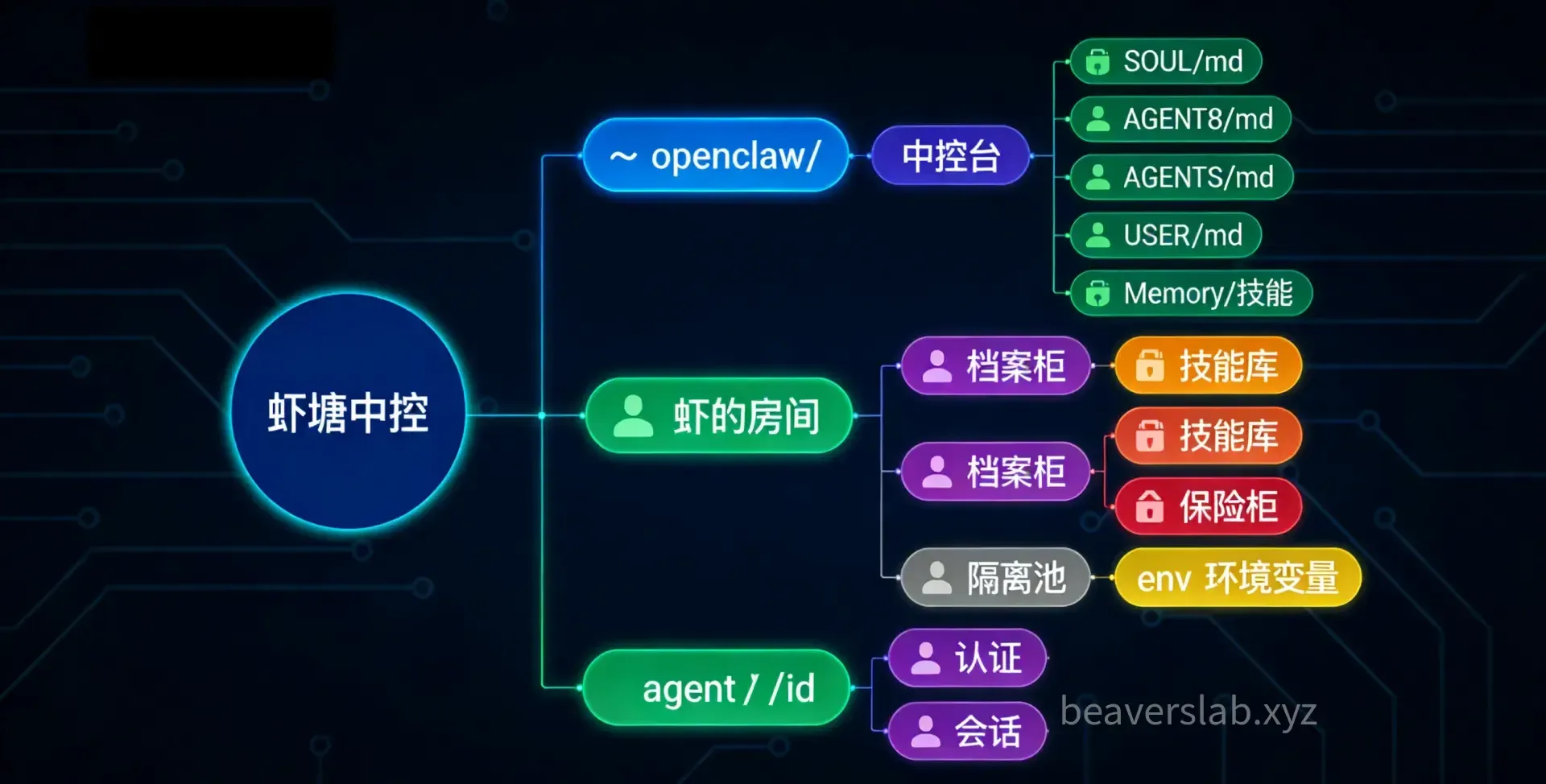
But where do all these shrimp live? The answer is the ~/.openclaw/ folder. It’s the shared “shrimp pond” for all Agents — water quality, temperature, feed allocation, room numbers for each shrimp — everything is recorded here.
One command to dig the pond:
openclaw initAfter running this, you’ll find a new .openclaw/ folder in your home directory. Don’t rush in — let’s stand by the pond and take in the full view first.
Shrimp Pond Overview
~/.openclaw/├── openclaw.json # Global configuration file (control center)├── workspace/ # Default Agent workspace│ ├── SOUL.md│ ├── AGENTS.md│ ├── USER.md│ ├── TOOLS.md│ ├── IDENTITY.md│ ├── MEMORY.md│ ├── HEARTBEAT.md│ ├── BOOTSTRAP.md│ ├── BOOT.md│ ├── memory/│ │ └── YYYY-MM-DD.md│ ├── skills/│ └── canvas/├── workspace-<name>/ # Independent workspace for each Agent in multi-Agent setups├── agents/│ └── <agentId>/│ ├── agent/ # Authentication info, model registration│ └── sessions/ # Chat history, routing state├── skills/ # Skills shared by all Agents├── credentials/ # Credentials such as OAuth tokens, API keys├── sandboxes/ # Sandbox workspaces (used when sandbox mode is enabled)└── .env # Global environment variables (optional)Looks like a lot. Don’t worry, we’ll break it down one by one.
openclaw.json — The Pond’s Control Center
openclaw.json is the core configuration file for the entire shrimp pond, located in the ~/.openclaw/ root directory.
Format: JSON5
It uses JSON5 format, not standard JSON. This means you can:
{ // Write comments name: "my-agent", // Keys don't need quotes list: [1, 2, 3,], // Trailing commas are allowed}Much more comfortable to write than plain JSON, and easier to maintain.
Hot Reload
The Gateway continuously watches for changes in this file. Most modifications take effect automatically after saving, with no manual restart needed. Specifically:
- Hot-reloaded: changes to channels, agents, models, bindings, hooks, cron, tools, skills
- Requires restart: Gateway’s own configuration (port, bind address, TLS certificates, etc.)
The hot reload mode can be adjusted in the configuration:
{ gateway: { hotReload: "hybrid", // Default: safe changes hot-reload, critical changes auto-restart },}Configuration Structure Overview
{ agents: { ... }, // Agent definitions models: { ... }, // Model provider configuration (API keys, base URLs) tools: { ... }, // Tool toggles and permissions channels: { ... }, // Communication channels (Discord, etc.) bindings: [ ... ], // Message routing rules gateway: { ... }, // Gateway server settings skills: { ... }, // Skill configuration cron: { ... }, // Scheduled tasks}Environment Variables
String values in the configuration support environment variable substitution:
{ channels: { discord: { token: { source: "env", provider: "default", id: "DISCORD_BOT_TOKEN", }, }, },}OpenClaw looks up environment variables in the following order:
- Parent process environment variables
.envfile in the current working directory~/.openclaw/.envfile
Strongly recommended: Use environment variables for all sensitive information (bot tokens, API keys) — never write them in plaintext in the configuration.
Configuration Priority
When you have multiple configuration sources, the “closest wins” principle applies:
Project-level openclaw.json (highest) > Global ~/.config/openclaw/config.json > Built-in defaults (lowest)workspace/ — The Shrimp’s Room
workspace/ is the Agent’s “home” and its default working directory at startup. Each Agent can have its own independent workspace (e.g., workspace-dev/, workspace-ink/), or multiple Agents can share the same one.
Who Lives in the Workspace?
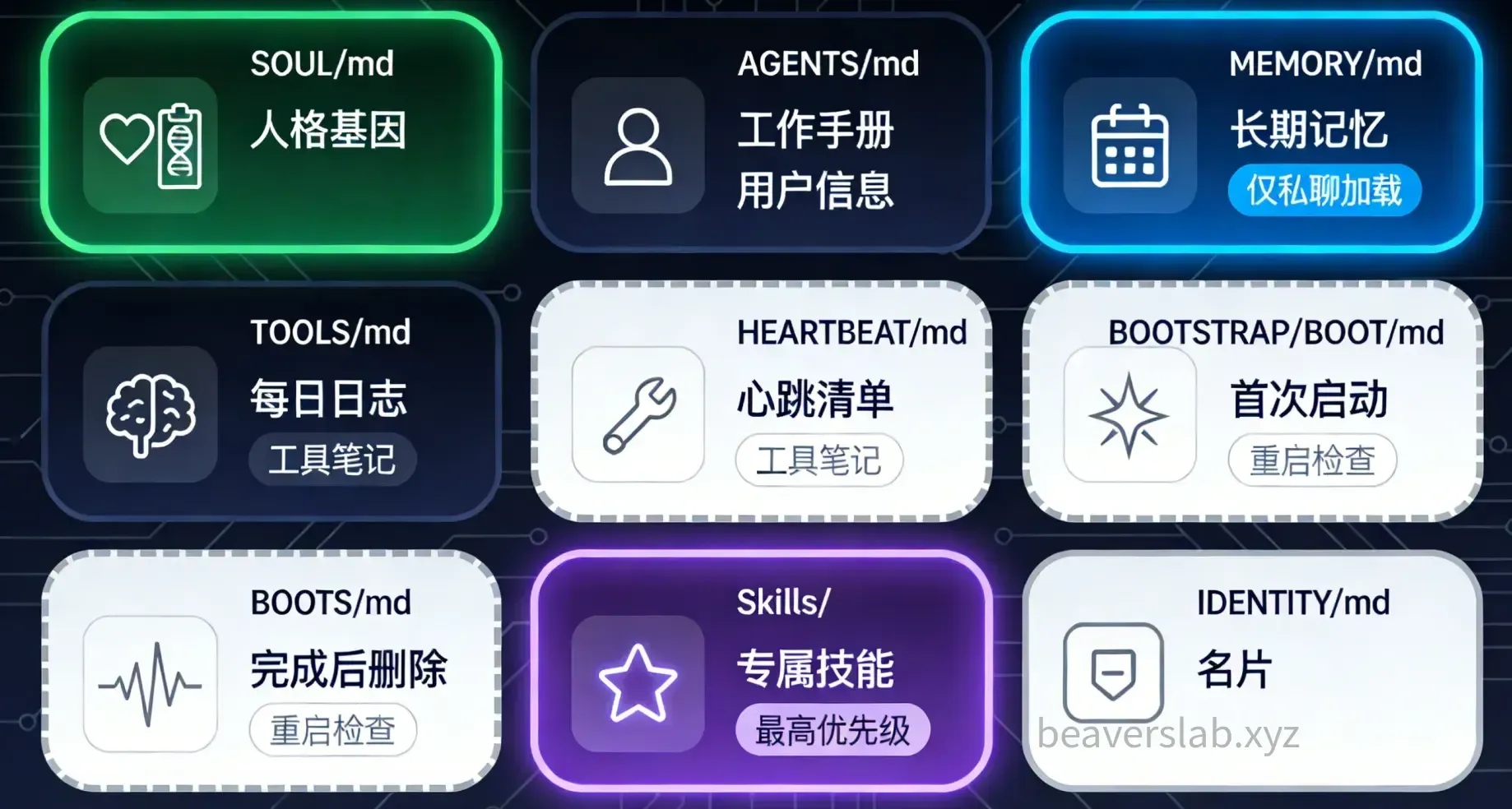
A standard workspace directory contains the following files:
workspace/├── SOUL.md # Agent's personality and character├── AGENTS.md # Agent's operational instructions and collaboration rules├── USER.md # User info and preferences├── TOOLS.md # Tool usage notes├── IDENTITY.md # Agent's name and identifier (optional)├── MEMORY.md # Long-term memory (curated highlights)├── HEARTBEAT.md # Heartbeat task checklist (optional)├── BOOTSTRAP.md # First-run ceremony (deleted after completion)├── BOOT.md # Checklist executed on Gateway restart (optional)├── memory/ # Daily logs (raw records)│ └── YYYY-MM-DD.md├── skills/ # Agent-specific skills (highest priority)└── canvas/ # Canvas UI files (optional)Let’s look at them one by one.
SOUL.md — The Agent’s Personality DNA
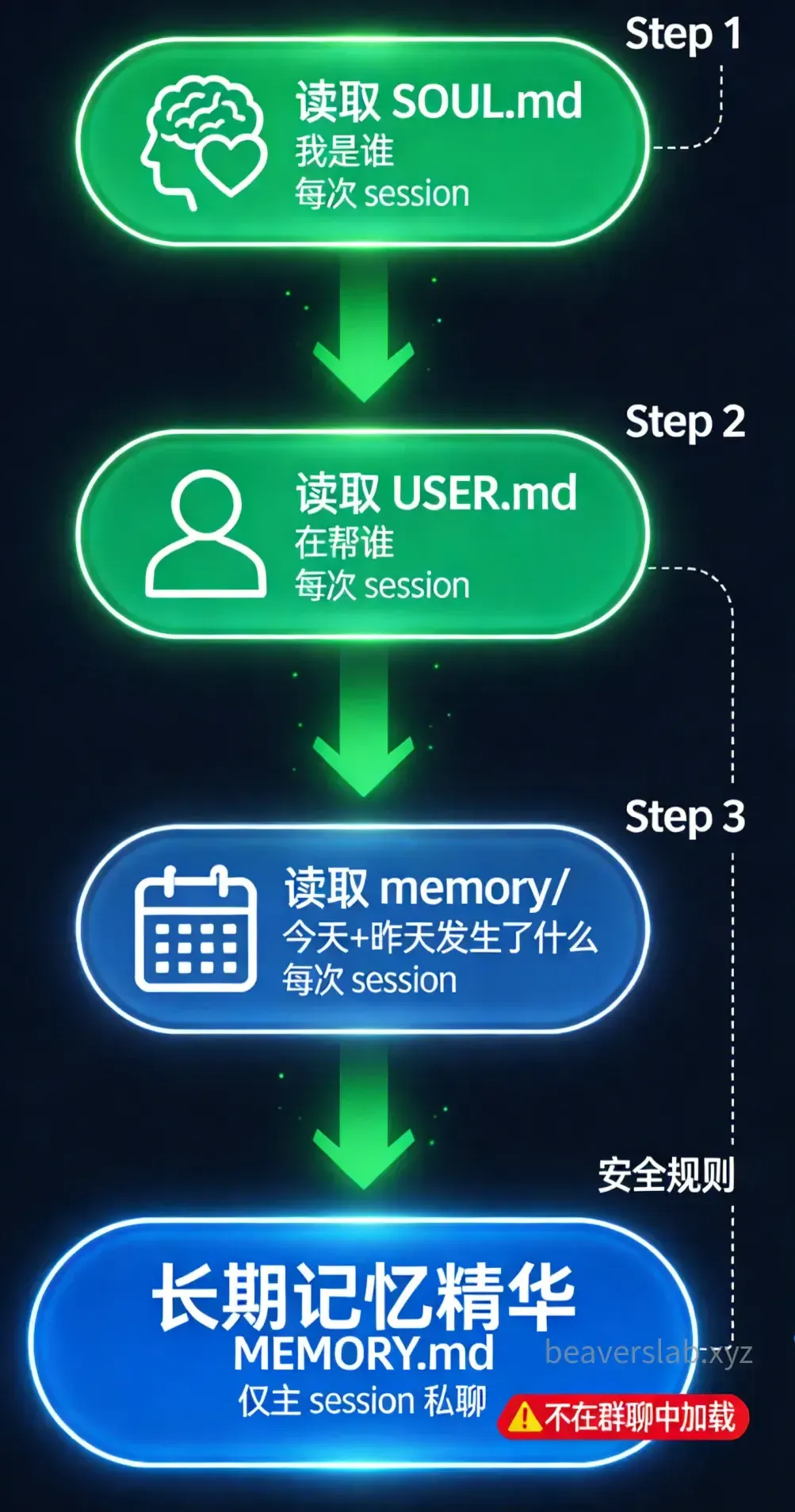
Loaded: At the start of every session.
SOUL.md defines “who” the Agent is. It contains:
| Field | Description |
|---|---|
| Personality | The Agent’s character: calm and pragmatic? Lively and humorous? Rigorous and precise? |
| Tone | The Agent’s speaking style: formal? Conversational? Code-first in technical discussions? |
| Principles | The Agent’s behavioral guidelines: safety boundaries, work methods, decision logic |
| Boundaries | The Agent’s no-go zones: operations that should never be performed |
| Expertise | The Agent’s areas of expertise |
Simply put, SOUL.md determines the shrimp’s “innate personality.” You can think of it as the Agent’s factory settings. The same task (e.g., writing code) with different SOUL.md files will produce completely different interaction styles — one might be a strict mentor, another a hands-on pragmatist.
Note: SOUL.md isn’t something you write once and forget. As you and your Agent develop a working rhythm, you’ll keep refining it to better match your work habits. We recommend reviewing and optimizing it regularly.
AGENTS.md — The Agent’s Work Manual
Loaded: At the start of every session.
If SOUL.md is the “innate personality,” then AGENTS.md is the “acquired training.” It defines how the Agent works:
- Role definition: What is this Agent responsible for? Coding? Writing? Data analysis?
- Workflows: Steps for receiving tasks, deliverable formats, acceptance criteria
- Collaboration rules: How to divide work and hand off tasks with other Agents
- Code/content standards: Code style, commit conventions, article formatting, etc.
A practical AGENTS.md should be specific down to an executable level of detail. For example, don’t just write “responsible for coding” — spell out the full process: “receive task → analyze requirements → design solution → implement and test → submit deliverable.”
USER.md — Who You Are
Loaded: At the start of every session.
USER.md tells the Agent who its user is. It typically includes:
- What to call you
- Your timezone and language preferences
- Your work habits and preferences
- Your tech stack and commonly used tools
This lets the Agent know “who I’m helping” and adjust its behavior accordingly. For example, if you prefer communicating in Chinese, are in UTC+8, and work with TypeScript + React — write all that in USER.md so the Agent doesn’t have to ask every time.
TOOLS.md — Tool Usage Notes
Loaded: At the start of every session.
TOOLS.md is a memo for tool usage, not a tool toggle. It records:
- What tools are installed locally and their versions
- Shortcuts for commonly used commands
- Caveats and lessons learned from using specific tools
Note: TOOLS.md does not control the actual enabling/disabling of tools. Tool permissions are managed by tools.allow / tools.deny in openclaw.json. TOOLS.md is simply a “tool manual” for the Agent to reference.
IDENTITY.md — The Agent’s Business Card
Optional file.
Records the Agent’s name, theme, and emoji identifier. Usually auto-generated during openclaw onboard or openclaw configure. You can also create it manually to give the Agent a custom identity.
MEMORY.md — Long-term Memory
Loaded: Only in the main session (private chat with the user). Not loaded in shared environments (group conversations).
MEMORY.md is the Agent’s “curated memory.” Unlike the raw daily logs in the memory/ directory, MEMORY.md stores long-term important information that has been filtered and refined:
- Your preferences and habits
- Important project decision records
- Recurring problems and their solutions
- Lessons worth preserving
The security rule is critical: MEMORY.md is only loaded in private chats, not in group chats. This is to prevent your personal information and preferences from leaking to other people in the group. If you notice the Agent mentioning private information from your MEMORY.md in a group chat, that’s a bug and should be reported.
HEARTBEAT.md — Periodic Health Check List
Optional file.
Loaded: When a heartbeat triggers.
HEARTBEAT.md is the checklist the Agent reviews when it periodically wakes up. For example:
## Periodic Check Items (rotate through them, don't do all every time)- [ ] Check platform data for unusual fluctuations- [ ] Check for pending tasks- [ ] If anomalies found, notify the relevant AgentBest practice: Keep HEARTBEAT.md short and focused. During a heartbeat, the Agent only loads this file (if lightContext: true), not the full SOUL.md and AGENTS.md, to save tokens. Writing too much defeats the purpose.
BOOTSTRAP.md and BOOT.md
BOOTSTRAP.md is the Agent’s first-run initialization ceremony. It defines what the Agent needs to do the very first time it wakes up — introduce itself, confirm configuration, establish initial memories, etc. Once the ceremony is complete, this file should be deleted and will not be executed on subsequent startups.
BOOT.md is a checklist executed when the Gateway restarts. When you modify Gateway configuration and trigger a restart, the contents of BOOT.md are executed to restore state or perform initialization checks.
Both files are optional. If you don’t need special startup logic, you don’t need to create them.
memory/ — Daily Raw Logs
memory/├── 2026-04-06.md # What happened yesterday├── 2026-04-07.md # What happened today└── ...Loaded: At session start, reads logs from today and yesterday.
The memory/ directory stores the Agent’s daily raw memories — like human short-term memory, recording what happened each day, what decisions were made, what problems were encountered.
These logs are the data source for MEMORY.md. The Agent periodically distills information worth preserving long-term from memory/ and updates it into MEMORY.md during heartbeat cycles.
Important principle: The Agent’s memories must be written to files — they can’t just “remember in their head.” Because when an Agent’s session restarts, files are the only source of continuity. Memories not written to files are forgotten the next time the Agent wakes up.
skills/ — Agent-Specific Skills
The skills/ directory under the workspace stores skills specific to this Agent. Skills are defined in SKILL.md format:
---name: my-skilldescription: Use this skill when the user mentions "xxx"metadata: {"openclaw": {"requires": {"bins": ["bun"], "env": ["API_KEY"]}}}---
# Skill Description## How to Use...
Workspace skills have the highest priority — when a skill shares the same name as a shared or built-in skill, the workspace version overrides them. This allows you to customize skill behavior for specific Agents.
Bootstrap File Size Limits
All bootstrap files (SOUL.md, AGENTS.md, USER.md, etc.) have size limits to prevent token waste:
- Single file limit:
agents.defaults.bootstrapMaxChars, default 20,000 characters - Total limit for all files:
agents.defaults.bootstrapTotalMaxChars, default 150,000 characters
Content beyond these limits will be truncated. If your SOUL.md is too long, the Agent won’t see the tail end. That’s why it’s important to keep bootstrap files concise.
agents/ — The Shrimp’s Filing Cabinet
The ~/.openclaw/agents/ directory stores each Agent’s administrative data. The distinction from workspace is: workspace is the Agent’s “living space,” while agents/ is its “administrative records.”
Directory Structure
agents/└── <agentId>/ ├── agent/ │ └── auth-profiles.json # Authentication info (OAuth tokens, API keys) └── sessions/ └── <session-id>.json # Chat history and routing stateagent/ — Authentication & Configuration
agent/auth-profiles.json stores this Agent’s authentication information, including:
- OAuth tokens (for connecting to third-party services)
- API keys (for calling LLM APIs)
- Model registry (list of models available to the Agent)
Key rule: Authentication info is isolated per Agent. Credentials between different Agents are completely independent. Agent A’s API key will not leak to Agent B.
This is also why you should absolutely never share agentDir across Agents. If two Agents point to the same agents/<id>/ directory, it will cause authentication conflicts and session corruption.
sessions/ — Conversation History
The sessions/ directory stores all of this Agent’s conversation records and routing state. Every time the Agent is awakened and has a conversation, a record is left here.
These session files support:
- History review: View via
openclaw sessions history --agent <id> - Cross-session continuity: The Agent can read previous conversations after restarting
- Troubleshooting: When an Agent behaves abnormally, checking session files can help pinpoint the cause
If an Agent suddenly starts behaving abnormally (e.g., persistent errors), you can have another Agent check its session files to find and fix the problem.
skills/ — Shared Skill Library
The ~/.openclaw/skills/ directory stores skills shared by all Agents.
Skill Loading Priority
workspace/skills/ (Agent-specific skills, highest priority) > ~/.openclaw/skills/ (Pond-wide shared skills) > Built-in skills (OpenClaw built-in, lowest priority)When the same skill name exists at multiple levels, the higher-priority version overrides the lower one.
Where to Put Your Skills?
- Only one Agent uses it → Put it in that Agent’s
workspace/skills/ - Multiple Agents might use it → Put it in the
~/.openclaw/skills/shared directory - Need even more shared directories → Configure extra paths via
skills.load.extraDirs
credentials/ — The Credential Vault
~/.openclaw/credentials/ stores authentication state for communication channels:
- Discord bot connection info and pairing data
- Third-party service OAuth tokens
- API keys and other sensitive credentials
This directory should be strictly protected. Recommendations:
- Never add it to Git repositories
- Use the
openclaw security auditcommand to check permissions - Ensure only your user account can read it at the OS level
OpenClaw provides security audit tools:
# Read-only checkopenclaw security audit
# Deep check (includes WebSocket probing)openclaw security audit --deep
# Auto-fix permission issues (e.g., chmod 600/700)openclaw security audit --fix
sandboxes/ — The Isolation Pool
When you enable sandbox mode, Agents don’t run directly on the host machine — they execute in an isolated container environment. Sandbox workspaces are generated under ~/.openclaw/sandboxes/.
Sandbox Modes
| Mode | Description |
|---|---|
off | No sandbox, full host access (default) |
non-main | Non-main sessions use sandbox |
all | All sessions run in sandbox |
Workspace Access Levels (Inside Sandbox)
| Level | Description |
|---|---|
rw | Can read and write its own workspace |
ro | Workspace mounted read-only at /agent |
none | Completely isolated sandbox workspace |
Sandboxing is an advanced topic. When you’re just starting to raise shrimp, the off mode is fine. Consider enabling sandbox mode when you need to expose Agents to other users.
.env — Global Environment Variables
~/.openclaw/.env is an optional environment variable file. You can centrally manage all sensitive configuration here:
DISCORD_BOT_TOKEN=your_bot_tokenOPENAI_API_KEY=sk-...ANTHROPIC_API_KEY=sk-ant-...Reference them in configuration files via ${VAR_NAME}. You can also use the $${VAR} syntax to represent a literal $ symbol that should not be substituted.
Starting with One Shrimp: Minimal Runnable Configuration
We’ve toured every corner of the shrimp pond. Now let’s start from scratch and get the pond running with the minimal configuration.
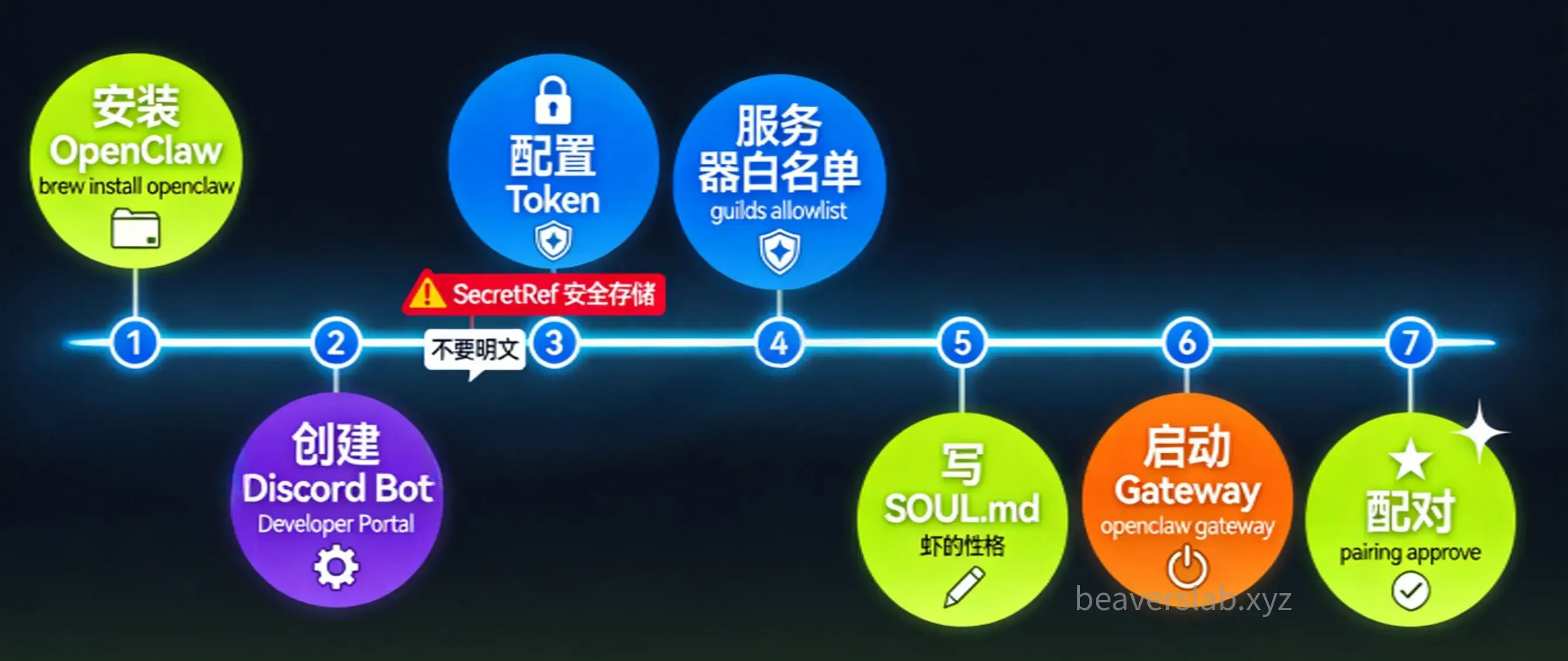
Step 1: Install and Initialize
# Install OpenClawbrew install openclaw
# Initialize the shrimp pondopenclaw init
Step 2: Create a Discord Bot
- Go to the Discord Developer Portal and click New Application to create an application
- Click Bot on the left sidebar, set a username, then enable the following Privileged Gateway Intents:
- Message Content Intent (required)
- Server Members Intent (recommended)
- Click Reset Token and copy the Bot Token (only shown once — save it securely)
- On the OAuth2 page, generate an invite link. Check
bot+applications.commands, and select these permissions:- View Channels, Send Messages, Read Message History, Embed Links, Attach Files
- Use the invite link to add the Bot to your Discord server
- Enable Developer Mode in Discord settings (User Settings → Advanced), then right-click to copy your Server ID and User ID
Step 3: Configure the Bot Token Securely
Never write the token in plaintext in configuration files or chats. Use environment variables:
export DISCORD_BOT_TOKEN="your_bot_token"openclaw config set channels.discord.token --ref-provider default --ref-source env --ref-id DISCORD_BOT_TOKEN --dry-runopenclaw config set channels.discord.token --ref-provider default --ref-source env --ref-id DISCORD_BOT_TOKENopenclaw config set channels.discord.enabled true --strict-jsonThis stores the token as a SecretRef in the configuration, with the actual value read from the environment variable DISCORD_BOT_TOKEN:
// Generated content in openclaw.json{ channels: { discord: { enabled: true, token: { source: "env", provider: "default", id: "DISCORD_BOT_TOKEN", }, }, },}Step 4: Add a Server Allowlist
Let your Bot respond in server channels, not just DMs:
# Set via CLI (recommended)# Or edit openclaw.json directly:{ channels: { discord: { groupPolicy: "allowlist", guilds: { "YOUR_SERVER_ID": { requireMention: false, // No @mention needed on a private server users: ["YOUR_USER_ID"], // Only allow yourself }, }, }, },}Step 5: Write a Minimal SOUL.md
## PersonalityYou are a versatile AI assistant with a concise and pragmatic style.
## Tone- Answer questions directly, no fluff- Code speaks in technical discussions- Proactively ask when uncertain
## Boundaries- Do not perform dangerous operations (deleting files, force push, etc.) without explicit confirmation- Do not fabricate uncertain information
Step 6: Start the Gateway
openclaw gatewayStep 7: Pairing
Send a DM to your Bot in Discord. The Bot will reply with a pairing code. Approve it with the following commands:
openclaw pairing list discordopenclaw pairing approve discord <pairing-code>The pairing code is valid for 1 hour. Once approved, your shrimp pond is officially open — start chatting with your Agent on Discord!
Pitfall Checklist
| Pitfall | Consequence | Solution |
|---|---|---|
| Token in plaintext in openclaw.json | Leakage risk | Use ${ENV_VAR} environment variable substitution |
| Sharing agentDir across Agents | Authentication conflicts, session corruption | Each Agent gets its own agents/<id>/ |
| Treating workspace as a hard sandbox | Absolute paths can still access the host | Explicitly enable sandbox when isolation is needed |
| SOUL.md too long | Truncated beyond bootstrapMaxChars | Keep it concise, under 20,000 characters |
| Forgot to back up workspace | Lost configuration, start from scratch | Manage workspace with Git, push to a private repo |
| BOOTSTRAP.md not deleted | Initialization ceremony runs on every startup | Delete the file after the ceremony completes |
Recap
We started with openclaw init and explored every corner of the shrimp pond one by one — the control center (openclaw.json), the shrimp’s rooms (workspace), the filing cabinet (agents), the shared skill library (skills), the credential vault (credentials), and finally got the pond running with a minimal configuration.
The design philosophy of .openclaw can be summarized in three words: progressive (start simple, grow complex), scalable (from single Agent to multi-Agent), and security-first (environment variable isolation, sandboxing, permission controls).
If you want to try it hands-on, open your terminal and run openclaw init to get started. Dig the pond in 5 minutes — we’ll cover the rest in future posts.
Beaver’s Shrimp Farming Diary, continuously updating. Follow BeaversLab and let’s raise shrimp together.
Published at: Apr 5, 2026 · Modified at: Apr 7, 2026